Reset BIOS PASSWORD by CMOS battery
The simplest way to remove a BIOS password is to simply remove the CMOS battery. A computer will remember its settings and keep the time even when it is turned off and unplugged because these parts are powered by small battery inside the computer called a CMOS battery. If we pull out this battery, the computer will forget alot of its hardware settings, including its BIOS password. This should not be performed on Laptops if you are not experienced working with laptop hardware.
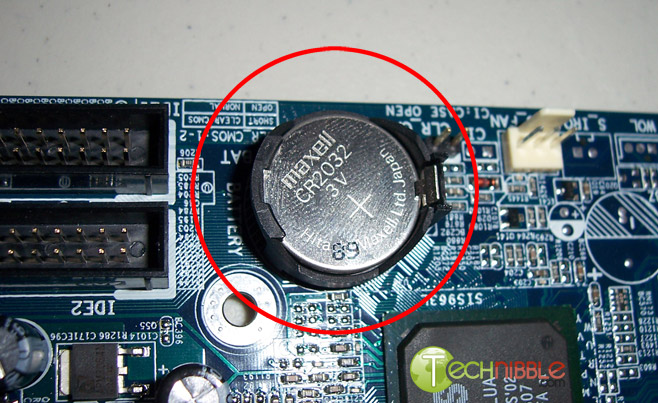 Anyway,
open up the computer case using a screw driver and locate the flat,
circular and metallic CMOS battery. It should look something like the
picture to the right. Some computers have this part standing upright.
Anyway,
open up the computer case using a screw driver and locate the flat,
circular and metallic CMOS battery. It should look something like the
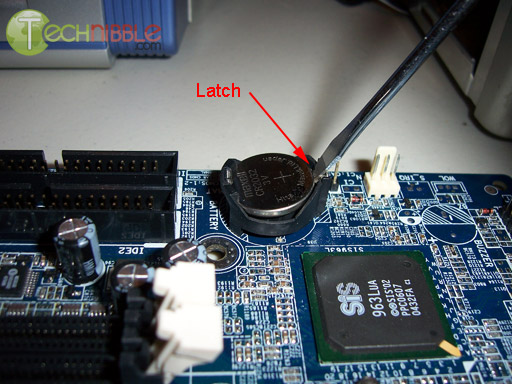
picture to the right. Some computers have this part standing upright.Once you have located it, observe how the latches are holding it. There are many different ways to remove a CMOS battery but the most common way on newer computers can be seen in the picture below.
Plug everything back in, power up the computer and enter the BIOS again. If everything went well there should be no more password. In some cases, if you get weird error messages during bootup now, you will need to goto “Load BIOS Defaults” in BIOS and save the changes to fix them.
If this method didn’t work, try one of the methods below.
Reset Password using pc cmos cleaner
PC CMOS Cleaner is an easy-to-use tool to recover, delete, decode and display the superior passwords stored in BIOS whatever the brand is. Most types of BIOS are supported. It's an bootable CD that runs on x86 and x86_64 computers. No need to pay expensive fees to experts. It's a useful tool for users to get their lost BIOS password back, or clean passwords from an old computer bought from others.Minimum Requirements:
- PC 586 or higher, 64 MB RAM
- Keyboard: Standard, PS/2 or USB (HID)
- Mouse (optional): serial, PS/2 or USB (HID)
- Bootable CD/DVD drive
All you should do:
- Download ISO files.
- Burn the ISO file to CD (see Burn CD).
- Set the BIOS to boot from CD. (see Set BIOS)
- Insert the CD you burned and reboot your computer. The software then automatically runs.
- Use PC CMOS Cleaner to finish the job. (see User-Guide of PC CMOS Cleaner)
This software is without any warranty. Please take your own risk.
The Downloading Link is here

No comments:
Post a Comment